
Choose your spreadsheet
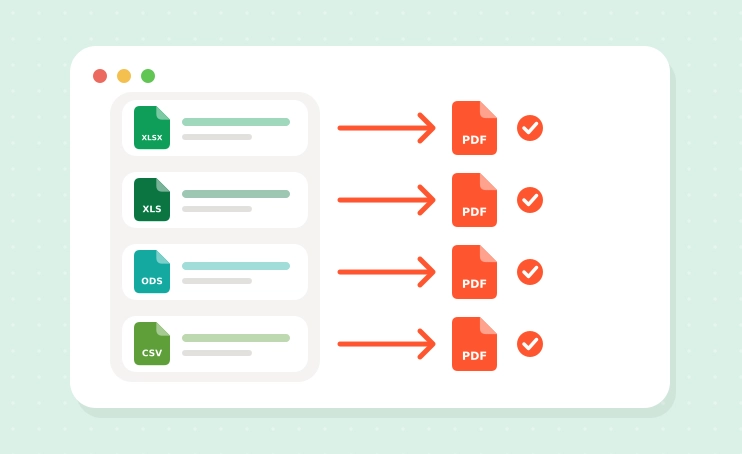
Press "Choose files" or drag a workbook into the window, from a computer or a phone: XLSX, XLS, ODS and CSV all work.

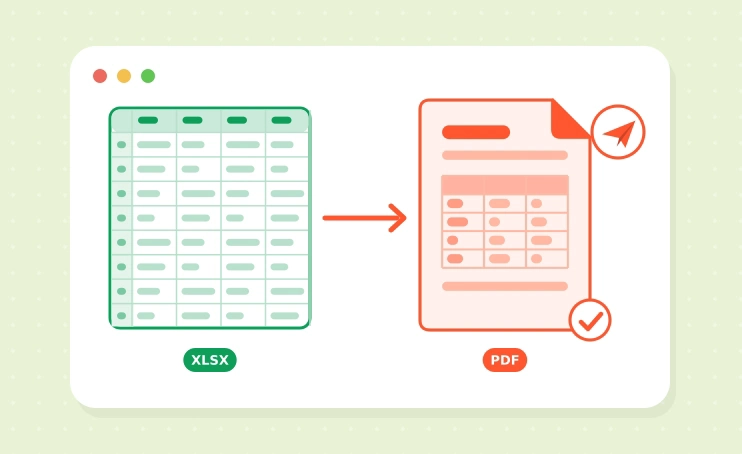
Excel to PDF online: keep columns, totals and formatting fixed in place, whoever opens it.
or drag files here
Get the sheet looking right in Excel first, then let the converter turn it into a PDF.
Press "Choose files" or drag a workbook into the window, from a computer or a phone: XLSX, XLS, ODS and CSV all work.
Timesheets for four weeks or reports for every branch can go in the same run: use "Add" to put more files in, and keep an eye on the "Files:" counter.
Under "Conversion settings" a standard workbook shows "Convert from:" as "Spreadsheet (XLSX)", with "Convert to:" set to "Document (PDF)". That is all there is to set.
Press "Convert file" and you get PDF documents in place of the spreadsheets, ready to attach to an email, upload to a portal or print.
A converted spreadsheet is often one piece of a bigger submission. These tools help with the rest.

Got a table as a PDF from someone else? If it has ruled lines, PDF to Excel can pull it out as a CSV file that opens in Excel.

If the budget, cover letter and quotes are separate PDFs, Merge PDF gathers them into a single document.

Sheets packed with logos and charts can produce heavy files. Compress PDF makes them lighter.
An Excel file is a working document. A PDF is the finished version you hand over, and this page gets you from one to the other without Office on hand.

The person you send it to does not need Excel, the same fonts or the same version. They open the PDF and see the figures as a fixed page.

No Office licence, no printer driver tricks. It runs in the browser on Windows, a Mac, a Chromebook or a phone.

Nobody can nudge a cell or overwrite a total in a PDF while scrolling, which matters for quotes, invoices and signed-off budgets.

Payroll and client figures stay private. Your spreadsheets and the PDFs made from them are not kept after the conversion.
The converter is free for files up to 100 MB, up to 30 times a day. If you convert reports all day or work with very large workbooks, Pro has no daily limit, takes files larger than 100 MB, shows no ads and puts your files in a priority queue.
A spreadsheet is fine while you are still working on it. The moment it goes to someone else, it starts causing trouble: columns that look too narrow on their screen, a total someone accidentally overtypes, or a recipient who simply does not have Excel. Turning Excel to PDF deals with all three before they happen.
Typical moments when people in the UK need it:
The converter takes XLSX from current Excel versions and the older XLS you still find in archives and long-running templates. ODS files saved by LibreOffice Calc go through too, and so do CSV exports from banking, payroll or accounting software, so you rarely need to resave anything first.
If you work in Google Sheets, download the sheet as XLSX from the File menu and convert that.
A common question about saving Excel as PDF is why the right-hand columns end up on a separate page. Usually the page layout of the workbook decides that. The converter has no page size, orientation or scaling options, so do the preparation in Excel:
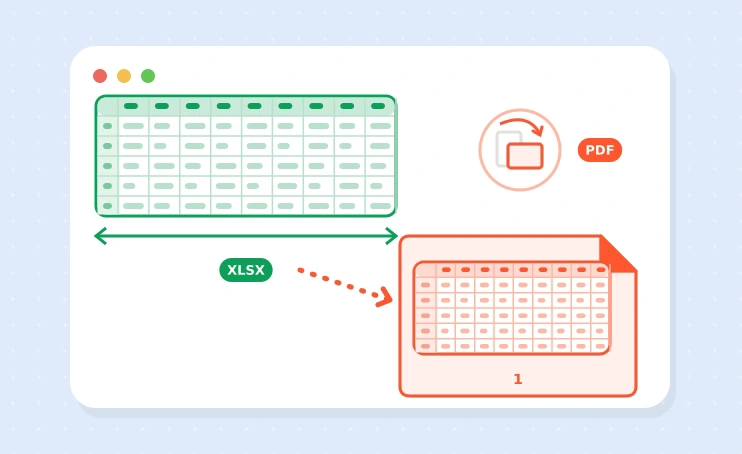
If the last column still lands on a page of its own, narrow the widest columns in Excel and convert again.
The end of the month rarely brings just one file. Instead of converting them one at a time, add them all to the same window: the sales report, the stock list and the staff rota go through in one run.
A short tidy-up saves an awkward follow-up email:
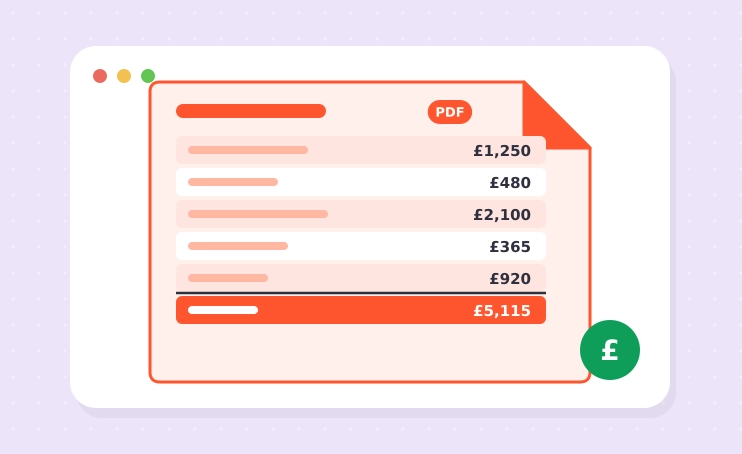
Once the sheet looks right in Print Preview, it is ready to convert.