
Pick the PDF with the table
Press "Choose PDF files" and select the price list or invoice. If you have more than one, the "Add" button puts extra PDFs into the same run, and the "Files:" counter shows how many are lined up.

Convert PDF to Excel online: add a PDF that contains a table and get a CSV file you can open in Excel, Google Sheets or LibreOffice Calc.
or drag PDF files here
It takes four short steps, and the default settings already suit a table.
Press "Choose PDF files" and select the price list or invoice. If you have more than one, the "Add" button puts extra PDFs into the same run, and the "Files:" counter shows how many are lined up.
Under "Conversion settings" you will see "Convert from:" set to "Document (PDF)" and "Convert to:" set to "Spreadsheet (CSV)". Leave the pair as it is to get the table as spreadsheet data.
Press "Convert file" and save the CSV. Keep the original PDF to hand for the next step.
Open the CSV in your spreadsheet program and compare a few rows with the PDF before you build anything on top of the figures.
Once the table is in a sheet, these tools cover the jobs that usually come next, or the ones a CSV cannot help with.

Once the numbers are tidied up, Excel to PDF turns the spreadsheet back into a fixed page that looks the same on anyone's screen.

If the PDF is mostly paragraphs rather than a table, PDF to Word gives you a document you can rewrite.

A scanned page is only a picture, so this converter comes back empty-handed. If what you need is the text itself, OCR for PDF can make the words and numbers on the scan selectable.
Copying a table cell by cell is slow and easy to get wrong. Here the converter does the copying and you only check the result.

Everything runs in the browser, on a work laptop as well as on a phone, so there are no add-ins to install and no admin rights to ask for.

When a pile of supplier invoices is waiting, add them all to the same window instead of feeding them in one after another.

CSV is the plainest spreadsheet format there is. Accounting packages, budgeting apps and every spreadsheet program accept it.

Bank details and payslips are sensitive. Files are not stored on BadPDF after the conversion, so nothing sits on a server waiting to be found.
Yes, the converter is free for files up to 100 MB, up to 30 times a day. If you handle statements and reports every day, Pro takes away the daily limit, accepts files larger than 100 MB, has no ads and puts your conversions in a priority queue.
Someone has sent you a table as a PDF. It might be a supplier's price list, or a one-page quote from a builder with every line ruled. You can read it, but you cannot sort it or add it up. Moving that PDF to Excel by hand means retyping every figure, with at least one wrong digit somewhere.
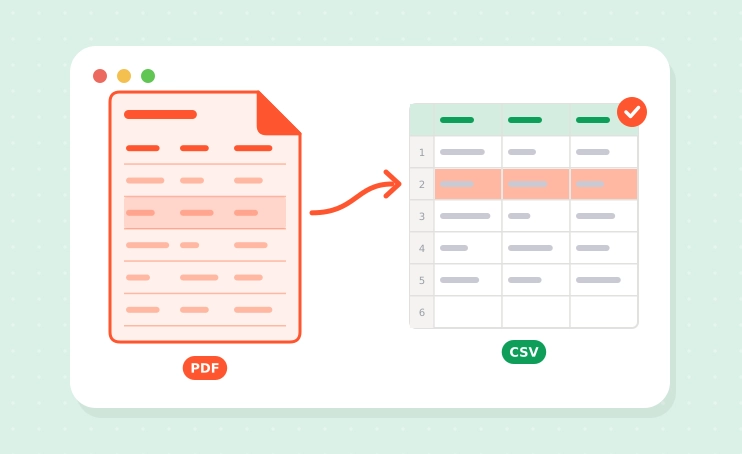
This converter looks for tables drawn with visible cell lines and writes them out row by row, so the figures land in cells instead of sitting on a page.
Most people looking for a PDF to Excel converter have a very ordinary job to do. At Self Assessment time you may need a year's business income and expenses for HMRC while half of the invoices only exist as PDFs. A landlord gets each month's rent summary from the letting agent as a PDF and wants the figures in one sheet.
At work, a supplier's new price list has to be checked against last year's line by line. And a dissertation can depend on a table that only exists inside a published report.
In each case the job is the same: get the figures off the page and into cells, where you can check them and carry on.
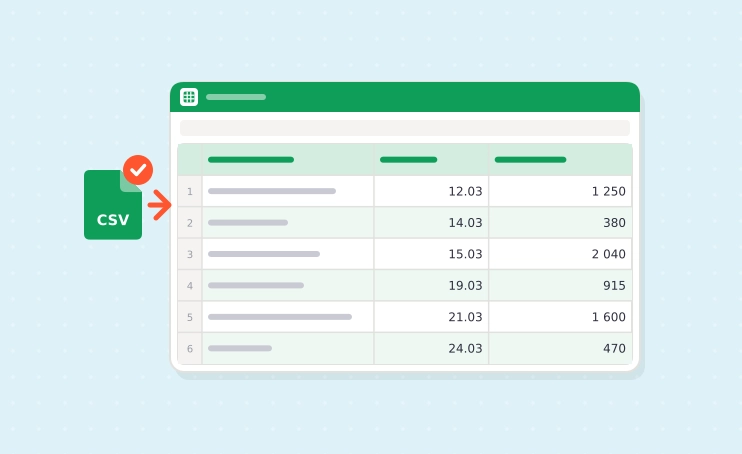
The file you get is a CSV, short for comma-separated values. It is plain text with one line per table row and commas between the cells. That sounds basic, and it is, but plain text is exactly what makes it so easy to import. With a PDF of several pages, the table on page one is the part that reliably comes through, so check anything beyond it against the original.
A CSV holds the values and nothing else. Once it is open in Excel and you want to keep working on it, use Save As and choose the Excel workbook format, then add your own totals, colours and charts.
A PDF is designed to look right on paper, not to hold data, so a little checking afterwards pays off. A few things worth a glance:
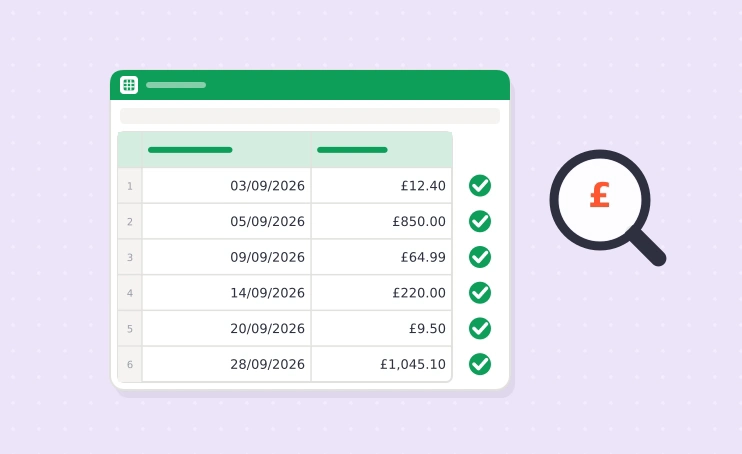
UK documents write dates as day, month, year. If your copy of Excel is set to US settings, 03/04 may turn into the 4th of March. Check a couple of dates against the original before you sort anything.
Sort codes, account numbers and phone numbers can lose their leading zero when Excel treats them as numbers. Import those columns as text if the zeros matter.
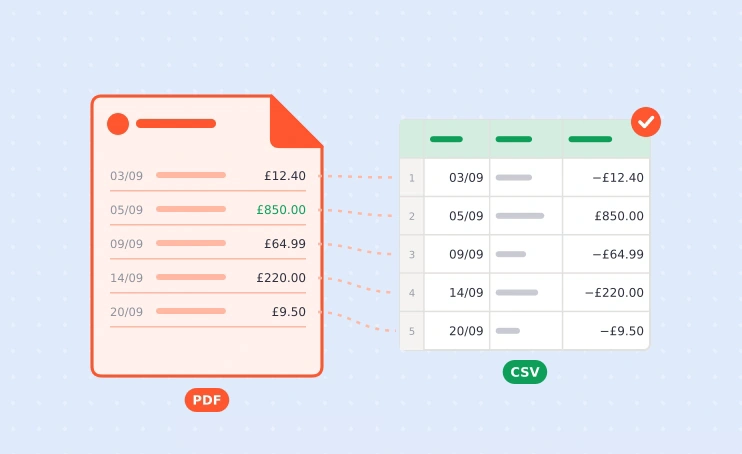
Values are copied as text, exactly as printed, £ signs and thousands commas included. Whether a column of amounts counts as numbers is up to your spreadsheet program. If a total refuses to add up, strip the £ with Find and Replace and try again.
A description that wraps onto a second line in the PDF stays in a single cell, with the line break kept inside it. You will not find it split across two rows.
Two things have to be true. The PDF needs real text: if you cannot highlight a number with your cursor, it is a picture and the converter will not pick it up. And the table needs visible lines around its cells. Even a PDF exported from Word, Excel or accounting software passes only if its table was drawn with borders.
Footnotes, side notes and paragraphs around the table do not go into the file. If your PDF mixes a table with lots of text, the CSV holds just the grid.