
Add the PDF to cut up
Press "Choose PDF file". The window takes one PDF per run, for example a 200-page planning pack from the council.

Split PDF documents into smaller files when one long PDF is too big to send or too long to work through.
or drag PDF files here
Up to 1 file
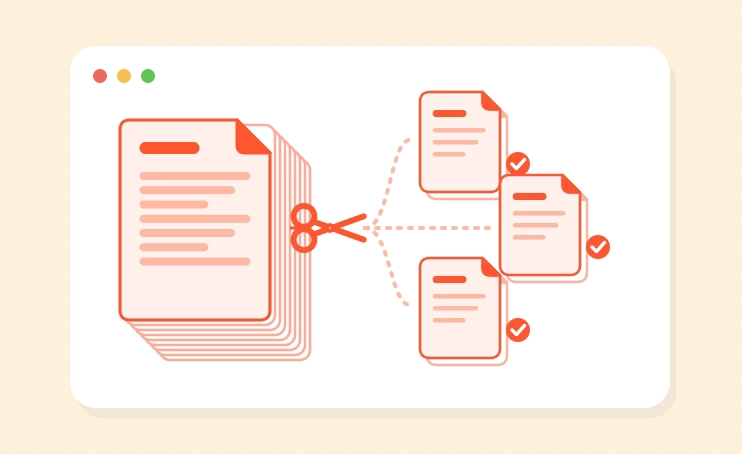
Four steps from one bulky document to a set of smaller ones.
Press "Choose PDF file". The window takes one PDF per run, for example a 200-page planning pack from the council.
Under "Split settings", which appears once the PDF is added, the window asks you to "Choose how the PDF should be split". The "File: 1" counter confirms that the document is in place.
Choose a method and fill in what it asks for: page numbers, a maximum size or a count. The examples further down this page show what to type in the most common cases.
Press "Split". The document is divided into separate PDF files following the method you picked, and you then download them.
Once the document is in pieces, these tools help you finish the job.

Need chapters two and five in a single file for your tutor? Merge PDF puts the parts you pick back together.

A stack fed into the scanner back to front is easy to fix: reorder PDF pages puts them back in sequence.

Scanned pages weigh a lot. Compress PDF makes a heavy part lighter for an email or upload form.
A few reasons it fits everyday paperwork.

The free plan splits files up to 100 MB, up to 30 times a day, enough for a term's worth of lecture packs.

The splitter works on an uploaded copy, so your original file stays in one piece in case you need it again.

Pro takes several PDFs in one run, has no daily limit and accepts files over 100 MB, which helps an office that splits scans every day.

BadPDF does not keep your documents, which matters for bank statements and medical records.
The free plan splits files up to 100 MB, up to 30 times a day. Pro takes several PDFs in one run, has no daily limit, accepts files over 100 MB, shows no ads and gives you a priority queue.
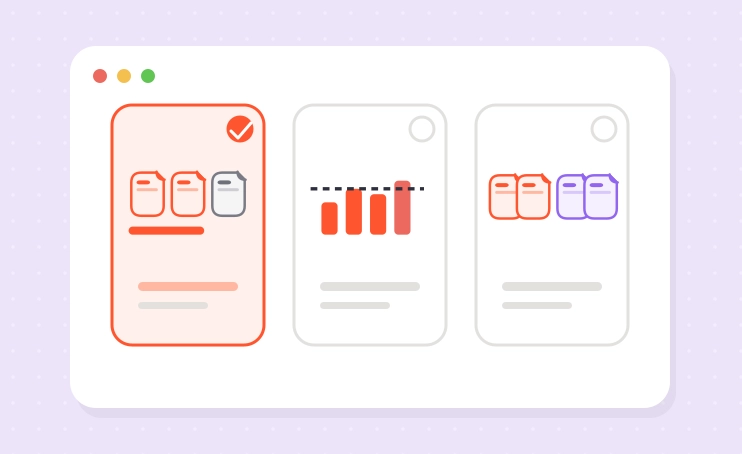
To split PDF documents, the window offers seven methods, and a 300-page annual report, a scanned stack of invoices or a thesis with ten chapters each suit a different one.
This is the method most people reach for. To split PDF pages by number, choose "Page Numbers" and type, separated by commas, the pages after which you want a cut. On a 12-page file, 3,7 produces three PDFs: pages 1 to 3, 4 to 7 and 8 to 12. A hyphen works differently from what you might expect: 3-7 means a cut after every page from 3 to 7, which leaves you with a string of small parts rather than one section.
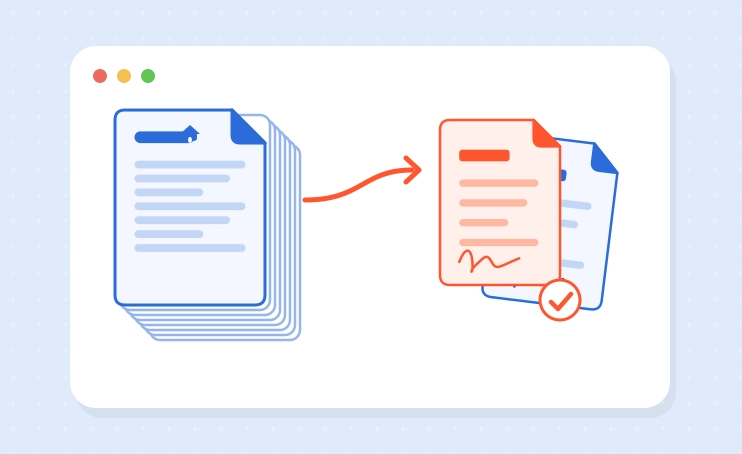
That string of single pages is sometimes exactly what you want. A tenancy agreement might run to 30 pages, the last four of them each holding a signed schedule, and the letting agent wants every schedule as its own file. Enter 26-29: pages 1 to 26 stay together as the agreement, and pages 27, 28, 29 and 30 each come out as a separate PDF.
In some PDFs every page is a document in its own right: a stack of signed consent forms from a school trip, a set of single-page certificates or a run of delivery notes. Choose "Page Count" and enter 1, and each page comes out as a separate PDF that can be filed or sent on its own. On a long report this gives one file per page, which is a lot to sort through. If you only need a few pages on their own, the hyphen range under "Page Numbers" described above is the lighter option.
When a long reading pack has to be shared out among a study group of four, choose "Document Count" and enter 4: each person takes one file. It is a quick way to divide the reading when nobody minds exactly where each part begins.
Sometimes the best place to split a PDF is already marked inside it. A well-made PDF often has bookmarks in its sidebar: chapters of an e-book, sections of a policy manual, parts of a council consultation pack. "Chapters" uses those bookmarks as split points, so you do not have to count a single page yourself.
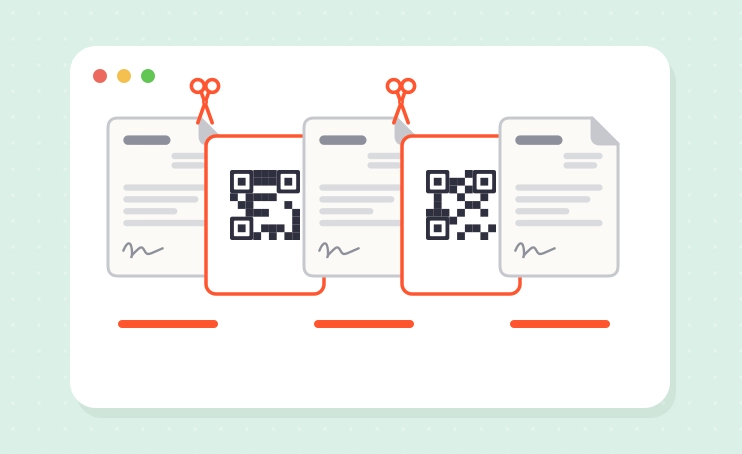
"Page Divider" is aimed at offices that scan paper in bulk. You place QR-code divider sheets between documents before feeding the stack into the scanner, and the split happens at each divider. It saves hours of sorting when one scan holds dozens of letters that need filing separately.
Printed page numbers and the page numbers of the file often differ, because a cover and contents pages shift the count. Type the page number your PDF viewer shows, not the one printed in the footer.