
Choose a PDF with real text
Drag your document onto the upload area, or pick it from a folder with "Choose PDF files"; once it lands, "Files: 1" appears to confirm it.

Upload your PDF file and convert it to Word (DOCX).
or drag PDF files here
For Word the window is already set up, so the steps are short. Here is what you see on the screen and what you get at the end.
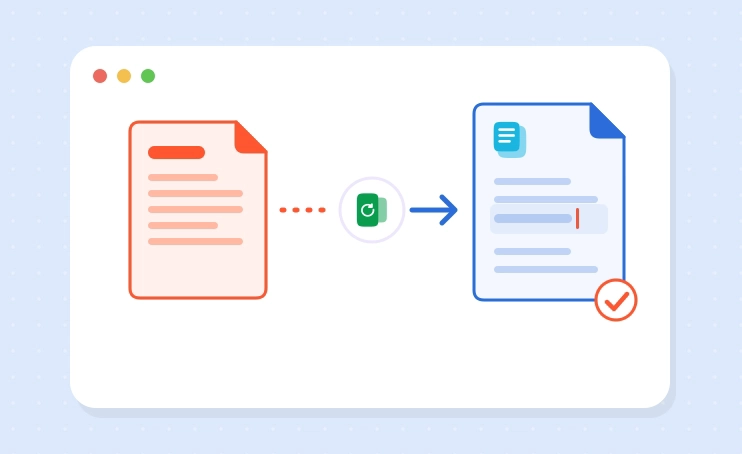
Drag your document onto the upload area, or pick it from a folder with "Choose PDF files"; once it lands, "Files: 1" appears to confirm it.
In "Conversion settings" your file shows as "Document (PDF)" under "Convert from:". "Document (DOCX)" is already selected under "Convert to:", so you can leave it as it is.
Hit "Convert file" once the settings look right, then download the DOCX when it is ready.
Open the DOCX in Word or any other editor that reads the format, then correct a date, update a name or add a clause where it is needed.
Some PDFs need a different tool. These three cover scanned pages, big tables and the trip back to PDF.

A scan is a photo of a page, so there are no words for Word to pick up. Recognise text in a PDF first and the text becomes selectable.

Budgets, timesheets and price lists are easier to sort and total in a spreadsheet. PDF to Excel moves the table into proper cells.

Finished editing? Word to PDF locks the layout in place again before you email the document or attach it to a form.
Copying text out of a PDF by hand is slow and full of typos. A clean conversion gives you the wording as it is, ready for your changes.

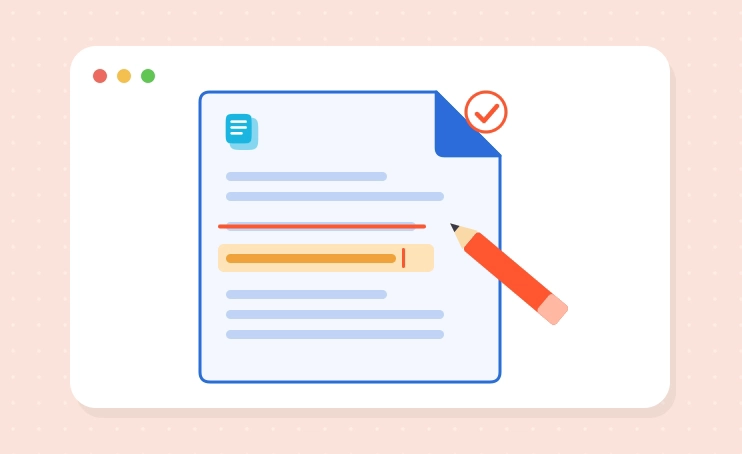
Every word can be selected, so spellcheck, find-and-replace and track changes work as they do in any Word file.

Documents are not stored after conversion, which matters when the PDF is a payslip, a P60 or a tenancy agreement.

There is no registration form and no email address to hand over before you convert.

Handy on a work laptop where you cannot add software: the page runs in the browser on a computer or a phone.
Yes, the converter is free for files up to 100 MB, up to 30 times per day. Pro is for heavier use: it has no daily limit, accepts files larger than 100 MB, converts several PDFs in one run, shows no ads and puts your files in a priority queue. That suits an office that turns a whole folder of contracts into Word every week.
Someone emails you a PDF and asks for changes: a tenancy agreement with the wrong start date, a CV that needs your latest job, a committee report with last year's figures. PDF to Word gives you back a DOCX where every line can be selected, deleted and retyped.
The usual fear is a file full of broken lines and stray spaces. Here the paragraphs keep their breaks, lines stay in the same order, and the page still looks like the document you started with, so you are not rebuilding it before you can edit it.
That matters for anything someone checks against the original, such as a lease, a policy or a grant application. You change the clause that needs changing and leave everything else exactly as it was.
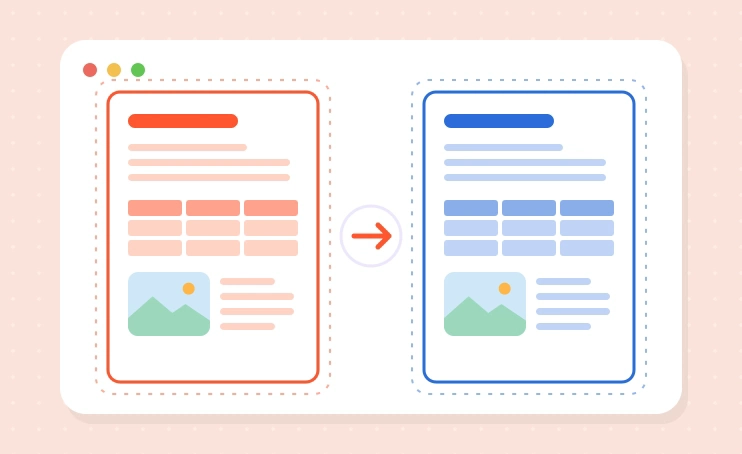
Tables and photos stay in the same spots of the page, and the text around them can be edited as usual.
For a letter with a price list or a short timetable, that is all you need. Long tables you need to sort or total are a different job, and the questions below explain why.
Most requests are small but annoying to do by hand:
In each case retyping the whole page would take longer than the change itself. Converting gives you the original wording to work on.
A few habits save trouble later. Save the DOCX under a different name first, so you always have the untouched PDF to compare against. If a colleague or your landlord needs to see what changed, switch on track changes before you start typing.
Read numbers, dates and names against the original once you are done, because a quick edit is exactly where a wrong digit slips in. If the file goes to a landlord or HR, give it a clear name with your surname and the date, so it does not get lost among other attachments.