
Choose one PDF
Press "Choose PDF file" and pick the document. The window works with one PDF per run, as the "Up to 1 file" note says, so make sure it is the right version.

Remove pages from PDF documents by entering the numbers or ranges you want gone, and download a shorter PDF that keeps everything else.
or drag PDF files here
Up to 1 file
There are no thumbnails to fiddle with. You tell the tool which pages to drop, and it hands back the PDF without them.
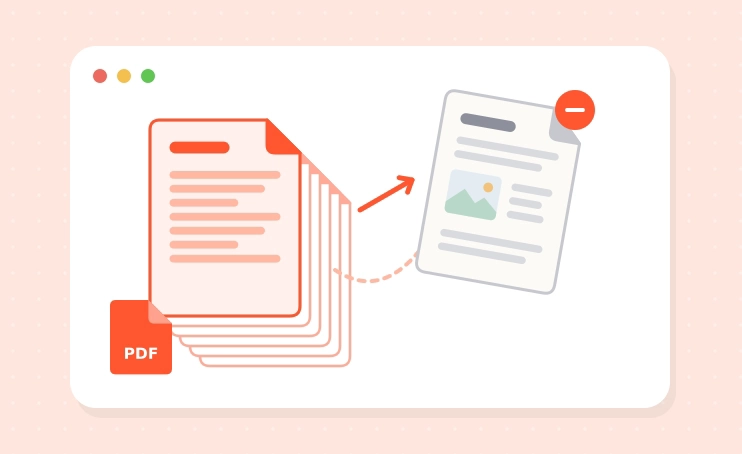
Press "Choose PDF file" and pick the document. The window works with one PDF per run, as the "Up to 1 file" note says, so make sure it is the right version.
In the "Pages to Remove" field type the numbers separated by commas. Entering 1,3,5 removes pages 1, 3 and 5 and leaves the rest untouched.
A hyphen covers a whole stretch: 5-8 removes pages 5 to 8. Single numbers and ranges can share a line, just like the hint in the field: 1,3,5-8,10. The expression 2n removes every even page; type it on its own, without other numbers.
Press "Remove pages" and you get one PDF without the pages you listed, ready to download.
Removing pages is often only part of the clean-up. If the document needs a different kind of fix, try one of these.

If you want the pages as separate documents rather than gone, split PDF cuts one file into several.

A scan that came out back to front? Reorder PDF pages and put them where they belong.

Some portals cap attachments at a few megabytes. Compress PDF brings the file size down.
Most PDF readers let you look at a document but not change it, and the editors that can usually cost money. This page does one job: it takes out the pages you name.

Scrolling through a 300-page report to find page 214 is tedious. Typing 214 is not.

The tool creates a new PDF. The original file on your computer or phone is not changed, so you can always go back to it.

Tenancy agreements and medical letters are nobody else's business, and files are not stored after processing.

The result is an ordinary PDF that opens anywhere, so you can attach it to an email or an upload form without any extra steps.
Yes, it is free for PDFs up to 100 MB, up to 30 times a day. Pro is for people who trim documents in bulk: no daily limit, files larger than 100 MB, several PDFs in one run, no ads and a priority queue.
PDFs rarely arrive in exactly the shape you need. A scanned tenancy agreement has a blank page at the end. A bank statement you are sending as proof of address includes three pages of transactions nobody needs to see. To remove pages from PDF files like these, you only need to know their numbers.
The page is built around one field. You list the pages that should go, and you get back the same document minus those pages.
In practice a stray blank page or an old title page is one number, and a chapter or an appendix is one range.
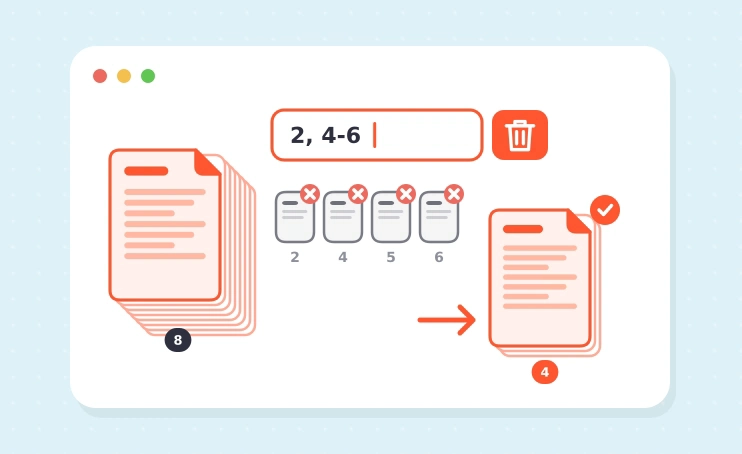
A mixed entry such as 2,4-6 removes page 2 and pages 4, 5 and 6. Double-check the line against the document before you run it, and you will not lose a page you meant to keep.
The numbers in the field refer to the position of a page in the file, not to the number printed at the bottom of it. It catches a lot of people out.
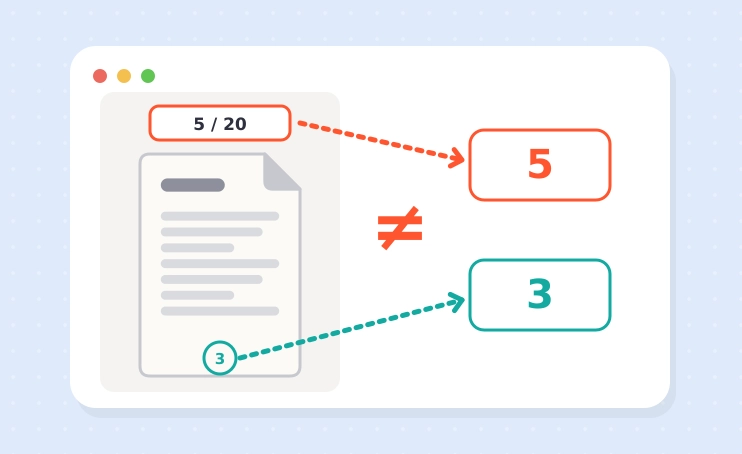
A council report might start with a cover and a contents page before printed page 1. A book chapter might use Roman numerals for the preface. In both cases the printed numbers are shifted. Before you type anything, open the PDF in your usual viewer and look at the page counter in the toolbar, which shows the real position.
Blank pages are the most common reason people want to remove pages from PDF files. They creep in when a printer scans both sides of single-sided letters, or when a Word document ends with an empty paragraph that pushes a page break.
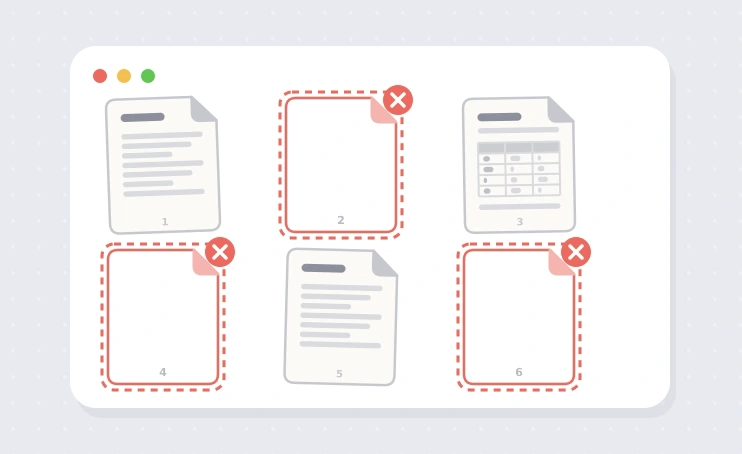
The tool does not guess which pages are blank, so you stay in control: note their positions in the viewer and list them.
Other frequent extras worth trimming:
On a Mac, Preview can remove pages, and Adobe Acrobat can do it on a paid plan. Neither helps much on a shared office PC or a Chromebook. This page runs in the browser on Windows, macOS, iPhone and Android with nothing to install, so the steps are the same wherever the PDF happens to be.
That is especially useful when the deadline is today and the document is sitting in your email on your phone: remove the extra pages there and then, and reply with the corrected file.